Blog

Tutorial: Photoshop Sky Replacement AI

Adobe Photoshop can easily replace an empty sky with skies in Adobe’s library or your own. There are times when you’ve got a great photo but, because of timing or other circumstances, you miss a more interesting sky by minutes or hours or days.
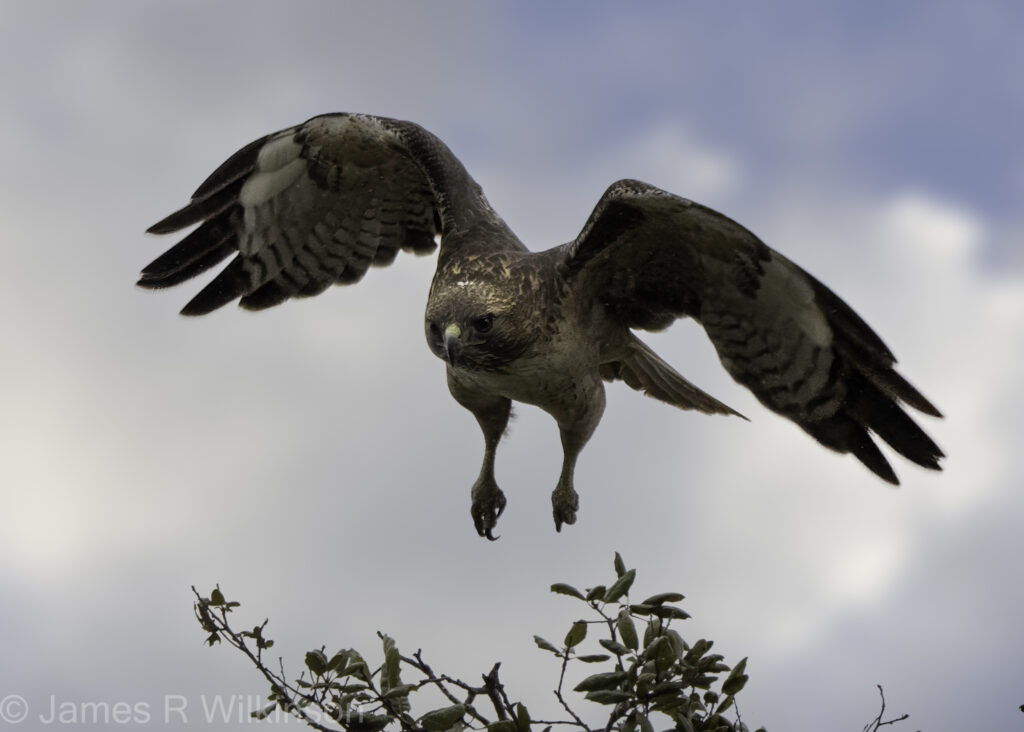
I photographed a Red Tail Hawk against grey rainy skies. Because of the bright backlighting, I added +2 stops compensation. So the bright, flat sky, was completely washed out. To add a more interesting sky, I used Photoshop’s Sky Replacement (Menu: /Edit/Sky Replacement) to replace the background. I also applied a Filter/Gaussian Blur to soften the focus on the crisp clouds, adding bokeh.
Purist will scoff at using tools as this but there are times and circumstances when this is fine in my photography. As long as I’m honest about what edits I’ve done and they aren’t presented as untouched. I grew up with photographic film artists like Jerry Uelsmann and Man Ray. Their photographic manipulations were part of their vision, creative process and integral to their photographic process.

If you prefer to use your own sky photos, once the sky replacement dialog box opens, click the v next to the sky thumbnail then the + in the lower right. A file select dialog box will open, select the photo – it can be a raw file – then click Open. This will add the sky to the existing library. Skies can be manipulated, scaled, flips, rotated, and edited. Although, you may want to do all your edits before importing the image into the library.

Adobe’s instructions on using your own skies:

Get the sky you love in three easy steps.” Adobe

Note – the following text if from Adobe’s sky replacement web page:

The Sky Replacement tool uses artificial intelligence to insert a new sky in place of the sky in the original image. Thanks to Sky Replacement algorithms, Photoshop can analyze and recognize the current sky and then plug in a new one. Upgrade your original sky in three steps:

1. Go to Select and choose Sky from the drop-down menu.

2. Choose Edit › Sky Replacement.

3. Use the sky drop-down to select a new sky from one of the preset sky images.


Adobe Photoshop offers a collection of skies, organized in three categories: Blue Skies, Spectacular, and Sunset. Blue Skies include daytime skies in solid blue or with clouds. Spectacular skies range from dramatic storm clouds and sunscapes to rainbows and a night sky. Sunset features yellow, orange, pink, and red sunset hues.

You can also import and use your own sky image to replace the sky. To do this, click the down caret and then the plus sign — you can import any JPG or PNG image.

“The best thing about Sky Replacement is that everything remains editable via the traditional Photoshop workflow,” says photoshop expert Jesús Ramirez. “This is not like a filter where once you apply it, you’re stuck with it. You actually have a lot of control, and all these controls eventually become a layer mask or adjustment layer.”

https://www.adobe.com/creativecloud/photography/discover/sky-replacement.html#:~:text=Get%20the%20sky,or%20adjustment%20layer.%E2%80%9D

21 Feb 2024 Theme: Birds & Wildlife

We had a good group meeting Wednesday Feb 21st with participants sharing their bird & wildlife images. This is a popular theme category especially with San Diego Zoo Safari Park’s free February admission for seniors. The Safari Park is a great venue for birds & wildlife photography since you have lots of opportunity to grab interesting animal behavior.

Barbara

Cathy

Gary

Jake

John

Jim

Mikky

Sharon

21 Feb 2024 Bird/Wildlife Theme: Jim

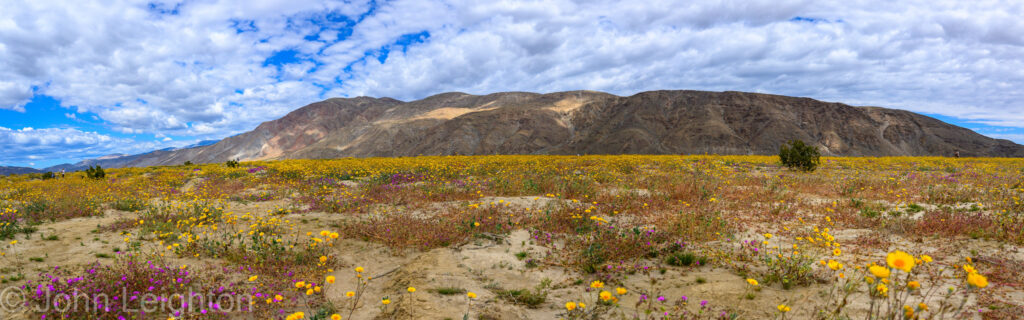
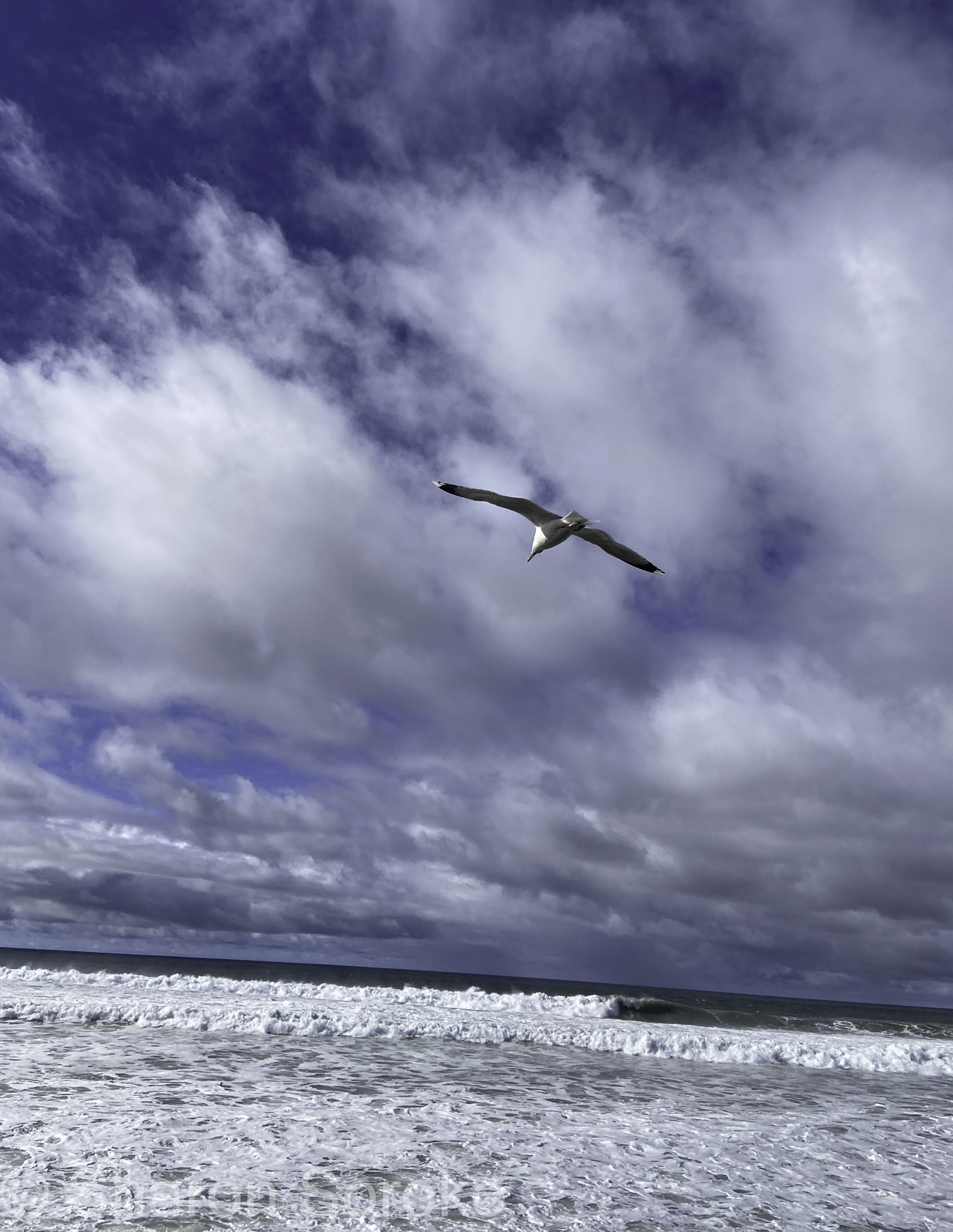
After focusing on primarily landscape photography, Jim has developed interest in improving his bird and wildlife photos. During a recent Safari Park visit, he experimented with the ‘get down to eye-level’ with the birds style. It was effective and will definitely become standard practice. He also visited Hawk Watch in Ramona and photographed the bird ‘ambassadors’. After Hawk Watch, he stalked a Red Tail Hawk in Ramona Grasslands during rainy weather. Using these plain sky images, did a quick demonstration of Photoshop’s sky replacement AI>

Tutorial: Nik Collections (Google Version)

Disclaimer – Nik Collections is a product currently sold by DXO for $149. But versions have been around for a long time, originally developed in 1995 by Nik Multimedia & sold for $600/copy. Google acquired it in 2012, sold it for $150/copy, then distributed it for free in 2016. DXO bought it in 2017 and currently updates and improves it.
The free google version (courtesy of Techspot: Windows or Mac) is what I’ve been using successfully with the latest version (v13.1, Jan 2024) of Lightroom Classic. Some websites suggest there are bugs using the 2016 version with the latest Adobe products. So far, I’ve had good luck and results but your mileage may vary. I’ve only used the Silver Efex Pro 2 module, not the sharpener, analog, or other modules. For more information, google “Nik Collection free version”.

Black & White Presets

I’ve been interested in film simulations both color and b&w. But I have been somewhat disappointed in many I’ve tried, especially b&w. I like the idea of making my images less digital looking, adding film-like qualities. Many digital photographers have been resorting to mist or glimmer filters to take the ‘digital-edge’ off. These soften the highlights without affecting the shadows. So trying these filters and tinkering with the digital camera color science has been something I’m exploring.
When converting color images to black&white, I haven’t like the results when applying a film simulation. I loved Plus-X and Tri-X film, back-in-the-day. But the artificial grain added by their film simulation presets don’t work for me. So I’ve been trying Silver Efex Pro 2, part of Nik Collection, to convert my color images to black & white. As with any digital darkroom tool, Silver Efex Pro 2 gives me a base b&w image to work on. Nik Collection are a group of plugins for Lightroom and Photoshop. So the color image is exported by Lightroom (with or without Lightroom edits) into a Nik Collection toolbox. I prefer the Silver Efex Pro 2 modules. You cycle through the different presets then save back into Lightroom for further edits and final output. Some of Silver Efex’s presets are extreme but I often get a better result than Lightroom’s b&w presets. I’m sure I could end up with similar results using Lightroom but found Silver Efex to be a better starting point.

Example from Reflections/Komorebi (click each image & read the filename for the Silver Efex Preset used)